Experience PJC
Paris Junior College is where opportunity meets ambition. Whether you’re preparing for a career, aiming for a four-year degree, or exploring new skills, PJC is here to help you achieve your goals.

Paris Main Campus
The main campus of Paris Junior College offers a welcoming, student-centered environment with a wide range of academic and workforce programs designed to support your goals.
More About Paris
Greenville
The Paris Junior College Greenville Center offers a variety of educational opportunities to support academic and career goals.
More About Greenville
Sulphur Springs
A wide variety of technical, workforce and academic courses are offered, both days and evenings, at this center that prepare students for the workforce.
More About Sulphur Springs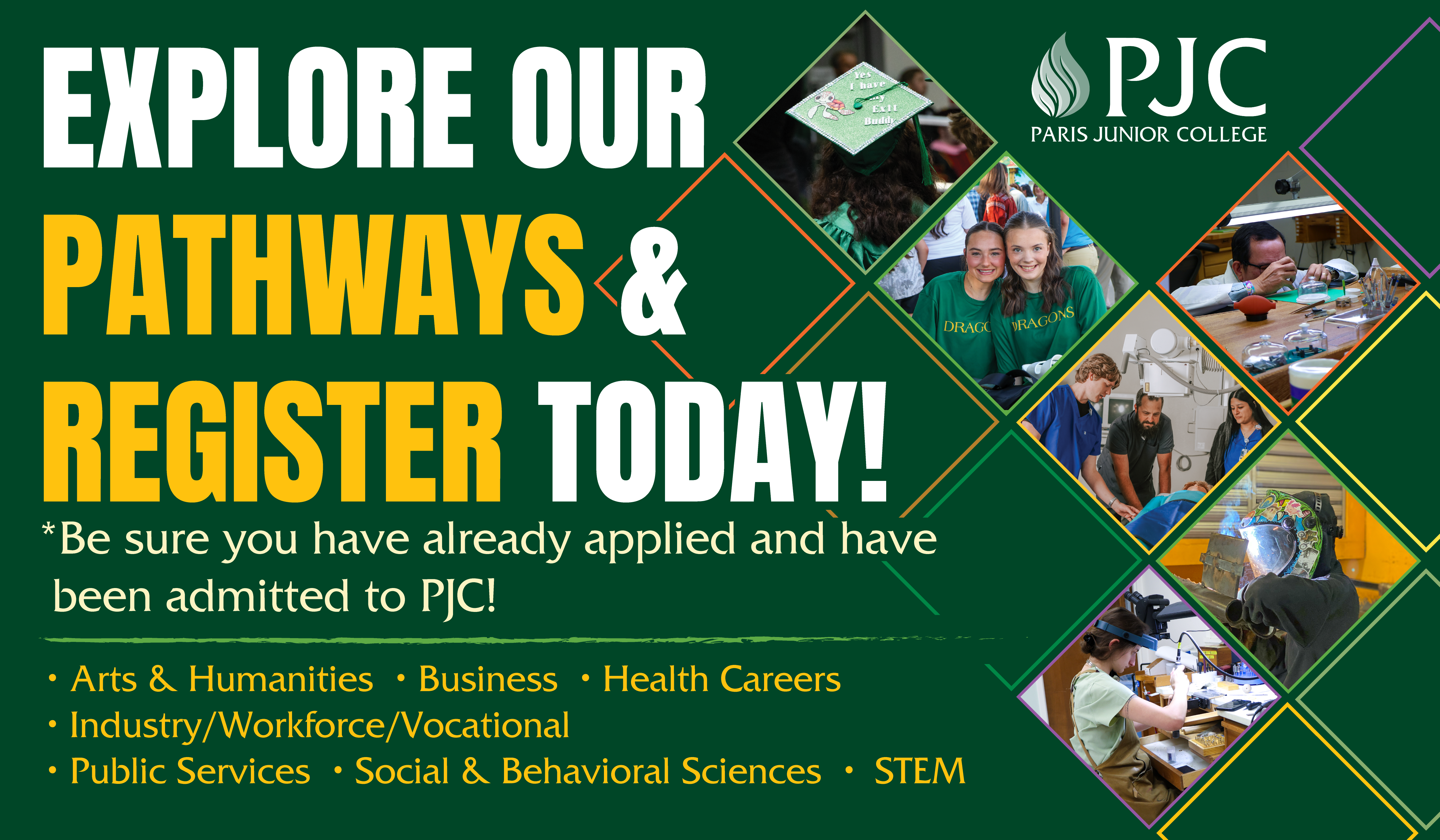

Dragon News
View All NewsLife at PJC

"Paris Junior College has shaped my future, and I'm truly grateful for the opportunities I've had-Especially the guidance and support from my incredible nursing instructors, and I'm truly grateful for the support, growth, and opportunities I've experienced here."
Braely Vickery

"Paris Junior College was truly the foundation of my educational and professional journey—a cornerstone in both my life and career. The support and opportunities I received at PJC set me on a path I never could have imagined."
Heather Unruh, Dean of Health Occupations
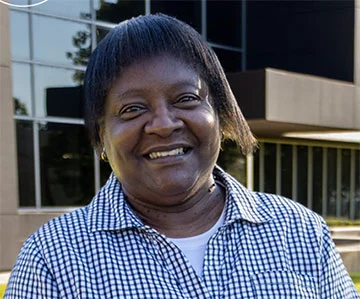
"She is dedicated, always here with a smile, and even works after hours taking money for admission to games. I love her passion and excitement for athletics!"
Administrative Assistant, Kinesiology/Athletics
Fast Facts
102 Years
of Academic Excellence
7
Career Pathways
42
Programs to Choose
